
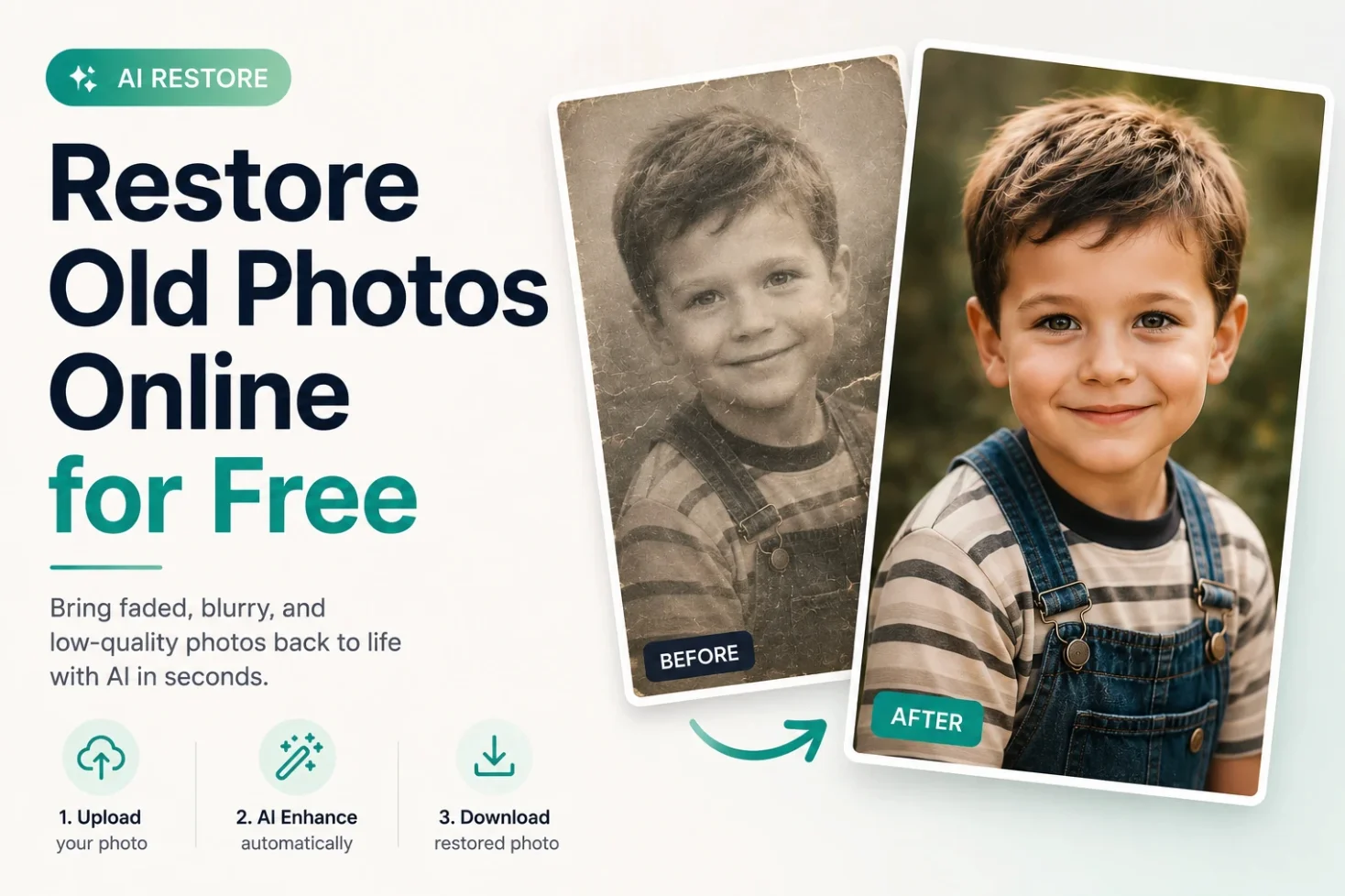
Old photos carry memories that can’t be recreated — but they often come with problems that time creates: fading, loss of detail, grain, scratches, and low resolution from early digital cameras or film scans. AI has made it possible to restore these images automatically, without professional photo restoration services or Photoshop skills. Phototune.ai offers a free AI image enhancer that restores old photos directly in your browser — no downloads, no account, no cost.
What Happens to Photos Over Time
Whether you’re dealing with scanned film prints or early digital photos, the quality problems are often the same:
- Loss of sharpness — film scans lose detail in the process; early digital cameras had very low megapixel counts
- Grain and noise — film grain in older photos, or digital noise in low-light shots
- Fading — colors become muted and desaturated over time in physical prints
- Low resolution — a photo that was acceptable on a small screen looks pixelated when displayed or printed larger
- Compression artifacts — old digital files saved in low quality show blocky, blurry areas
AI enhancement addresses all of these at once in a single processing step — no manual adjustments required.
How AI Restores Old Photo Detail
Traditional upscaling and sharpening tools work by manipulating existing pixels — stretching them, increasing contrast, or applying filters. The result is often artificial-looking, with halos around edges or an over-processed appearance.
AI restoration works differently. The model has learned from millions of images what sharp, detailed photographs look like — including the specific characteristics of portraits, landscapes, architecture, and textures. When processing an old photo, it reconstructs the fine detail that was lost or was never there to begin with, producing a result that looks natural rather than processed.
| Old Photo Problem | What AI Does | Expected Result |
| Low resolution / pixelation | Upscales 2x or 4x with detail reconstruction | Sharp, print-ready image |
| Grain and digital noise | Identifies and removes noise while preserving real detail | Clean, smooth result |
| Soft or blurry detail | Reconstructs fine texture and edge sharpness | Natural, crisp result |
| Flat, muted colors | Analyzes and corrects color balance and vibrancy | More vivid, natural tones |
| Compression artifacts | Reduces blocky, blurry areas from low-quality saves | Cleaner, artifact-free image |
Step-by-Step: Restore an Old Photo with AI
Step 1: Go to Phototune.ai and open the AI image enhancer. No account required — the tool is available immediately in any browser, on desktop or mobile.
Step 2: Upload your old photo. Drag and drop or click to browse. JPG, PNG, WEBP, and AVIF are supported up to 10MB. If your photo is a physical print, scan it first at the highest resolution your scanner allows — more pixels give the AI more to work with.
Step 3: Choose your upscale level. For a photo that’s already a decent size but needs restoration, 2x is a good starting point. For a small, low-resolution scan or early digital photo, choose 4x to get a properly sized output.
Step 4: The AI processes the photo automatically — sharpening, noise reduction, detail reconstruction, and color improvement happen simultaneously in seconds.
Step 5: Compare the before and after. Pay particular attention to faces, fine textures, and background detail — these areas show the most improvement. Download when you’re satisfied.
Tips for Scanning Old Prints
If you’re starting from a physical photo, the quality of your scan significantly affects the restoration result:
- Scan at minimum 600 DPI for standard 4×6 prints — higher is better
- Clean the scanner glass before scanning to avoid picking up dust or smudges
- Save the scan as PNG or high-quality JPG to avoid losing detail before the AI processes it
- If the photo is damaged with scratches or tears, the AI will still improve overall sharpness and detail — though physical damage may remain visible
Who Benefits Most from AI Photo Restoration
Families preserving old photo albums: decades-old prints and film scans can be brought up to modern display and print standards, making them suitable for framing, albums, or digital sharing.
E-commerce sellers with old product images: product photos from years ago that are too small or low-quality for today’s high-resolution listings can be upscaled and sharpened without a new photoshoot.
Bloggers and content creators: historical or archive images that are low-resolution can be improved enough for use in articles and social media without licensing new photos.
Try the Phototune AI enhancer free — upload your old photo, choose 2x or 4x upscaling, and download a sharper, cleaner, restored version in seconds. No account needed, no software required, completely free.

David Weber is an experienced writer specializing in a range of topics, delivering insightful and informative content for diverse audiences.
Step 5 is the key checkpoint for family archives. A scan can look sharper while introducing details that were not in the print, and a bright face is a different problem from low resolution. I would retain the untouched scan, compare exposure correction separately from upscaling, and label the edited copy. That makes it easier to judge whether the result preserves the photograph rather than merely looking cleaner.
For a baby album, it helps to keep three kinds of images clearly separated: the original photograph, a restored copy, and a newly generated portrait. They can all be meaningful keepsakes, but only the first records the scene as photographed. Your before-and-after step would be even more useful with filenames or album notes that preserve that distinction for family members looking back years later.